- Registration now shows nine clearly numbered steps with a visible progress rail
- Your place is saved automatically if you step away partway through
- A summary up front flags which steps need something you'll have to go and get first
Updated 11 October 2026. The first version of this post listed "Choose your base currency" as a step and had the account-size and billing steps in the wrong order. The list is now the rail shown on the sign-up page.
Starting a CFIN account is a multi-step process — understandably so, since it involves both an account with CFIN and a broker account in your own name. The registration flow now presents that process as nine clearly numbered steps, with a visible progress rail so you always know where you are and what is left.
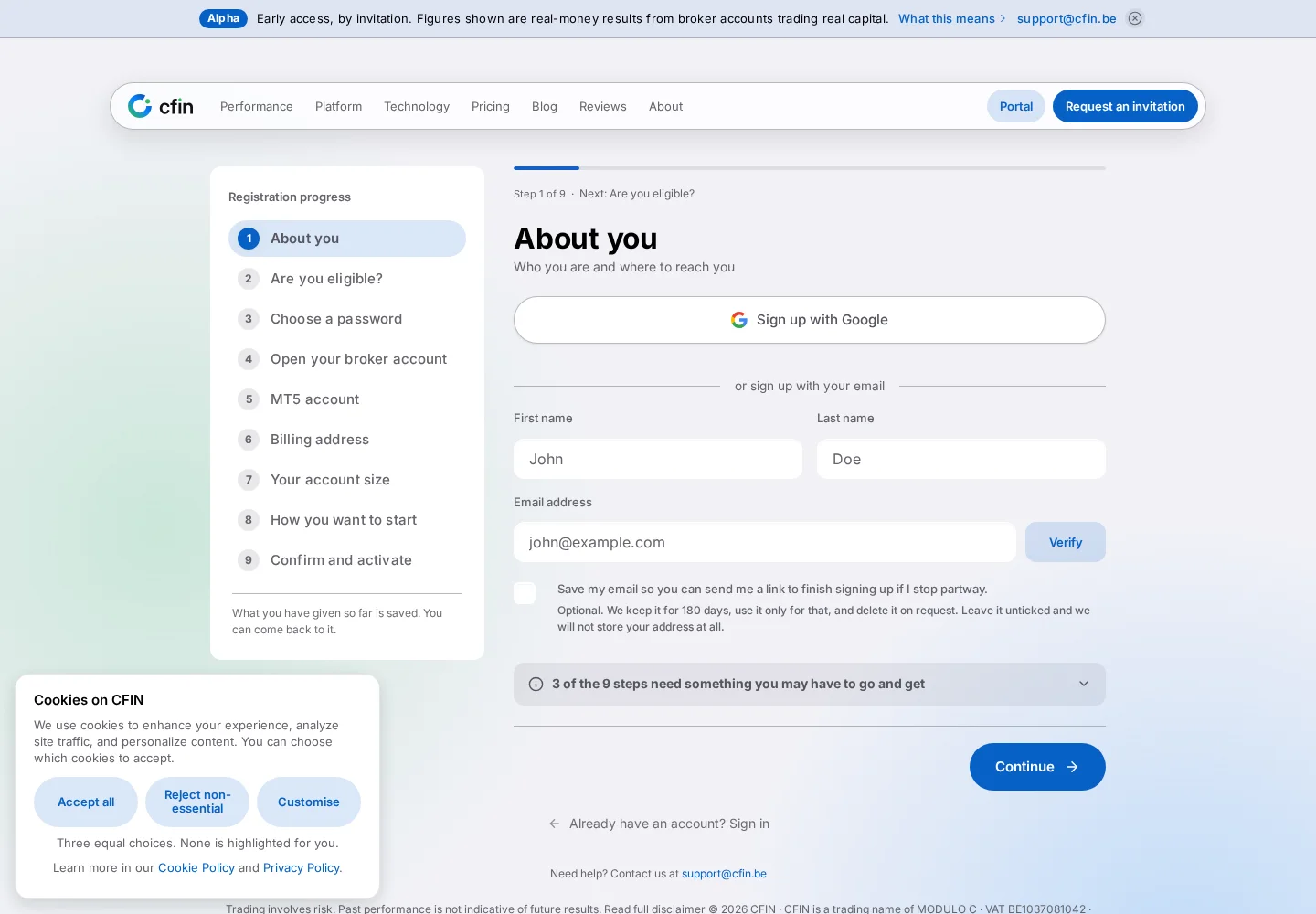




The nine steps
- About you
- Are you eligible?
- Choose a password
- Open your broker account
- MT5 account
- Billing address
- Your account size
- How you want to start
- Confirm and activate
What each step page tells you
Each step shows its own position directly — “Step X of 9” — along with a preview of what comes next, so you are never guessing how much further the process goes. A note at the bottom of the rail states plainly that what you have given so far is saved, and that you can come back to it if you step away partway through.
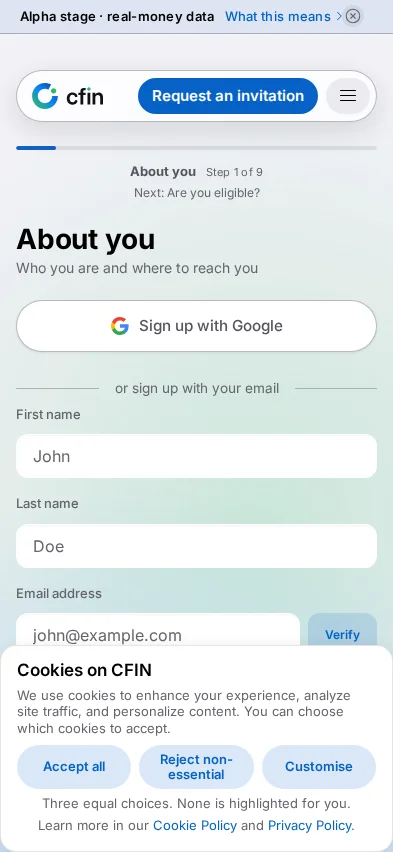
Signing up with Apple or Google
The first step also offers signing up with Google directly, alongside the standard first-name, last-name and email fields — one fewer thing to type if you would rather use an existing account.
A note on what to expect
Some of the nine steps need something you may have to go and get before you can finish them — opening the broker account and retrieving your MT5 credentials, for instance. A summary near the top of the first step says plainly how many of the nine fall into that category, so you can judge up front whether you have what you need to get through the whole flow in one sitting, or whether to expect a pause partway through.
Why some steps are shown as sub-cards
A couple of the nine main steps cover enough ground on their own that they are broken down further into a handful of sub-cards, each with its own short progress bar nested under the relevant main step — rather than one very long single page trying to hold everything at once. This followed direct feedback that one particular step had become too long as a single screen; splitting it into separate sub-cards, each with a narrower, specific focus, kept the step itself countable as one of the nine while making each individual screen shorter and easier to get through.
One number, counted one way
Keeping “9” as a single, stable total mattered enough that it is treated as one fact with one source rather than something re-typed at each point it appears. A label naming the current step number, and a separate preview naming what comes next, are both built from the same underlying step list rather than being written out separately — so the two can never quietly disagree about which step you are actually on, or how many are left.
What “started” means for your saved progress
What has been saved extends to more than the current step's fields — it includes whichever step you most recently reached, so returning to the registration flow after stepping away picks up from there rather than forcing a restart from the first screen. This is stated directly in the note under the progress rail, rather than left for a visitor to discover by trial.
How to try it
- Go to cfin.be/register.
- The rail on the left shows all nine steps; your current one is highlighted.
- Complete a step and select Continue to move to the next; your progress is saved as you go.
This flow walks through how an account is opened. It makes no claim about outcomes once an account is active — what the account size, limits and licence fee actually mean is covered in the fee calculator and the segmented limits control, each documented separately.